

Make your first change
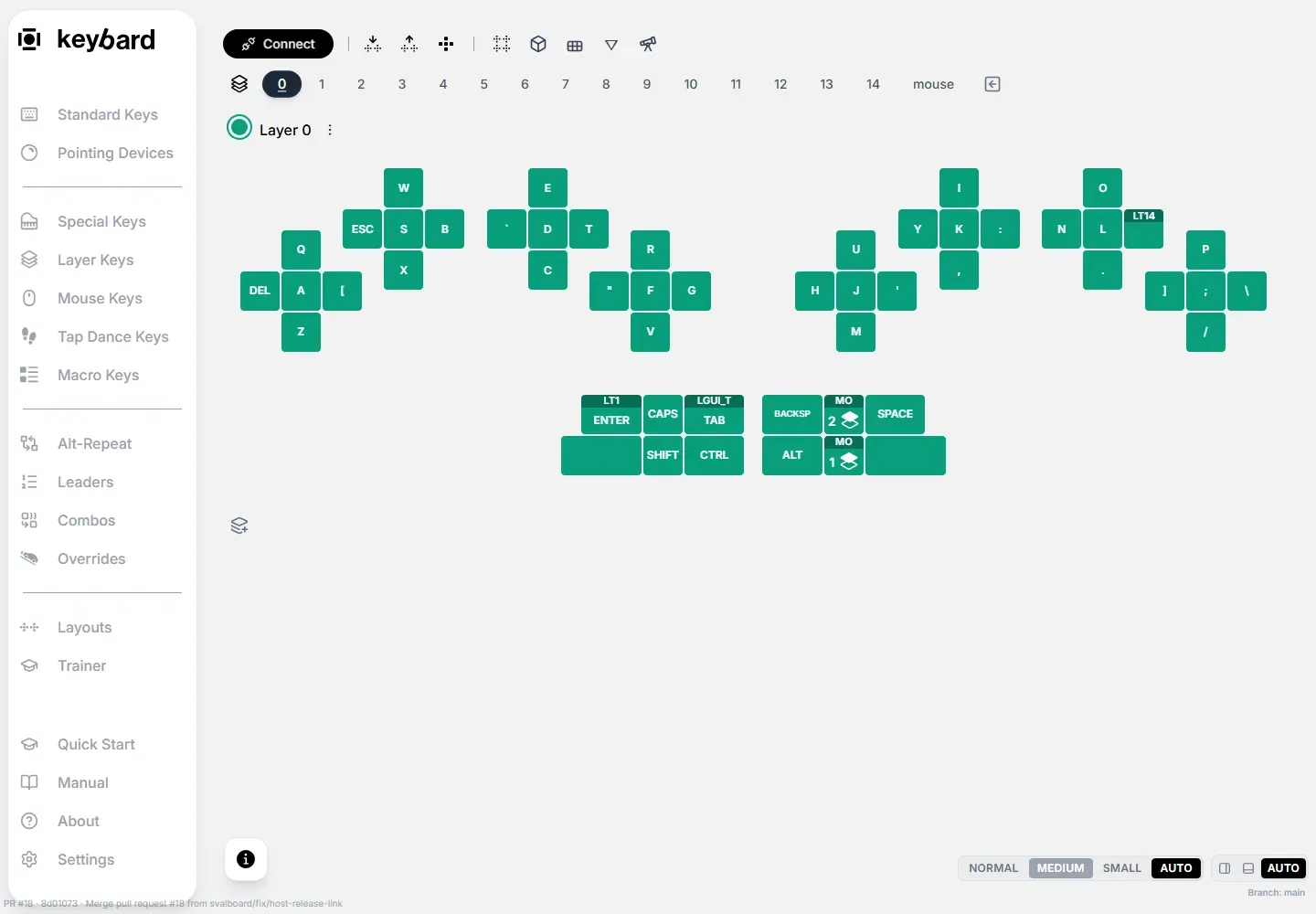
Start with one easy-to-recognize key on a layer you know. Leave the keys you use to switch layers alone until you are comfortable restoring a backup.
Choose when changes reach the board
Section titled “Choose when changes reach the board”Live Updating is on by default. While connected, each edit is saved to the board as you make it.
For a controlled first experiment, click the lightning control labeled Switch to Manual Updates. Edits then wait in a queue until you apply them.

| Control | What it does |
|---|---|
| Live Updating | Edits are saved as you make them. Watch for saving or error messages. |
| Pending (N) | In Manual Updates, the number of edits waiting. Click it to see the list. |
| Apply N Changes | Writes the pending edits to the board. |
| Discard pending edits | Throws away edits not yet applied. It doesn’t undo changes already applied. |
| Switch to Live Updating | Applies the pending edits, then turns Live Updating back on. |
Assign a key

Section titled “Assign a key”- Select the layer tab you want to edit.

- Open Standard Keys.
- Drag a key from the palette onto the position you want to change. Or select the position first, then click a palette key.
- Check the new legend. In Manual Updates, Pending (N) counts the edits waiting.
- Choose Apply N Changes and wait for saving to finish. A changed legend alone doesn’t mean the board has it.
- Click away to deselect the key. Open a text editor, switch to the layer you edited, and press the key.
- Export the working result as a new
.svilfile.
Swap two keys
Section titled “Swap two keys”Dragging a key from the layout onto another position swaps the two bindings, even across layers. Dragging from a palette assigns a copy instead.

If an Undo button appears, its tooltip names the change it reverses. It is not a full edit history.
Typing can assign a key
Section titled “Typing can assign a key”Typing Binds a Key is on by default. While a position is selected, pressing a key on your physical keyboard assigns that key to it, modifiers included.
Deselect before you test normal typing. To turn this off, open Settings → General and switch off Typing Binds a Key.