

Keybard
Keybard is the web app that configures a Svalboard running Svalboard QMK firmware. It runs in your browser at keybard.svalboard.com. There is nothing to install.
With Keybard you change what each key does, organize layers, build macros, tap dances, combos and other behaviors, tune your pointing devices, and back up your setup. You can explore it without a keyboard first.
What you need
Section titled “What you need”- A desktop browser that supports WebHID: Chrome or Edge. Firefox and Safari don’t support WebHID, so Connect Keyboard is unavailable there.
- A USB data cable between your computer and the half you plug in.
- Svalboard QMK firmware on the board. A board still on Svalboard’s Vial firmware needs new firmware first; see Moving from Vial.
The welcome screen
Section titled “The welcome screen”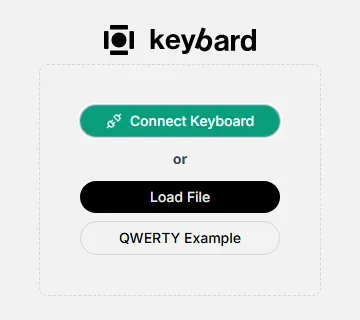
| Choose | What happens | Use it for |
|---|---|---|
| Connect Keyboard | The browser asks which keyboard to open. Keybard then reads its configuration. | Editing your Svalboard. |
| Load File | A saved layout opens as an offline draft. | Inspecting a backup or continuing exported work. |
| QWERTY Example | A bundled example opens without a keyboard. | Learning the controls safely. |

The recording above opens QWERTY Example, opens Standard Keys, and drags A onto Q. No keyboard is changed.
If the left navigation shows only icons, click the logo at its top to show the labels. Hovering an icon also names it.
Connect your Svalboard
Section titled “Connect your Svalboard”- Plug your Svalboard in by USB and open keybard.svalboard.com.
- Choose Connect Keyboard.
- Select your keyboard in the browser’s chooser and allow access. If several keyboards are attached, check that you picked the right one.
- Wait for the layout to load.
- Export a backup before you change anything (next section).
After a refresh, Keybard returns to the welcome screen. Keyboards you allowed before appear under or reconnect without the chooser.
Back up before your first edit
Section titled “Back up before your first edit”- Choose Export Layout in the toolbar above the keyboard.
- Keep .svil (Recommended) and Include Macros selected, then choose Export.
- Give the file a clear name, such as
before-first-edit.svil, and keep it outside the browser.

Export saves what the editor shows, including changes not yet applied to the board. Exporting after experimenting doesn’t give you back the untouched layout. Export first.
Keybard also keeps automatic backups while a board is connected.
Three places your work can live
Section titled “Three places your work can live”| Where | What it is |
|---|---|
| On your Svalboard | The saved configuration the keyboard runs. Connecting reads it. Applying edits changes it. |
| In this browser session | The current draft. It can include changes not yet applied, so the layout on screen is not always what the board runs. |
| On your computer | An exported file. A copy you keep. |
An example or a loaded file is an offline draft. Keybard writes nothing to a keyboard from it. Export the draft before closing or refreshing the page. Connecting a keyboard later reads that keyboard; it doesn’t install your draft.
Know what you are editing
Section titled “Know what you are editing”| State | Meaning |
|---|---|
| Editing a keyboard | Changes can be written to the connected board. |
| Offline draft | Changes affect the loaded file or example in this session. Export to keep them. |
| Pending changes | Changes are waiting to be written. The board may differ from the screen. |
| Not saved | A write failed. Some earlier writes may have succeeded. See Troubleshooting. |
Which firmware is on the board
Section titled “Which firmware is on the board”Open About in the left navigation. Under Keyboard firmware it shows the connected board’s Release, its Build, and the protocol and keycode versions. When newer firmware is available, About says so and links to it.
The firmware doesn’t report its release by name. Keybard works it out from the features the board reports, so it may show a release followed by “or later”.
If a half’s firmware doesn’t match the pointing device attached to it, Keybard warns you when you connect. See Pointing devices.