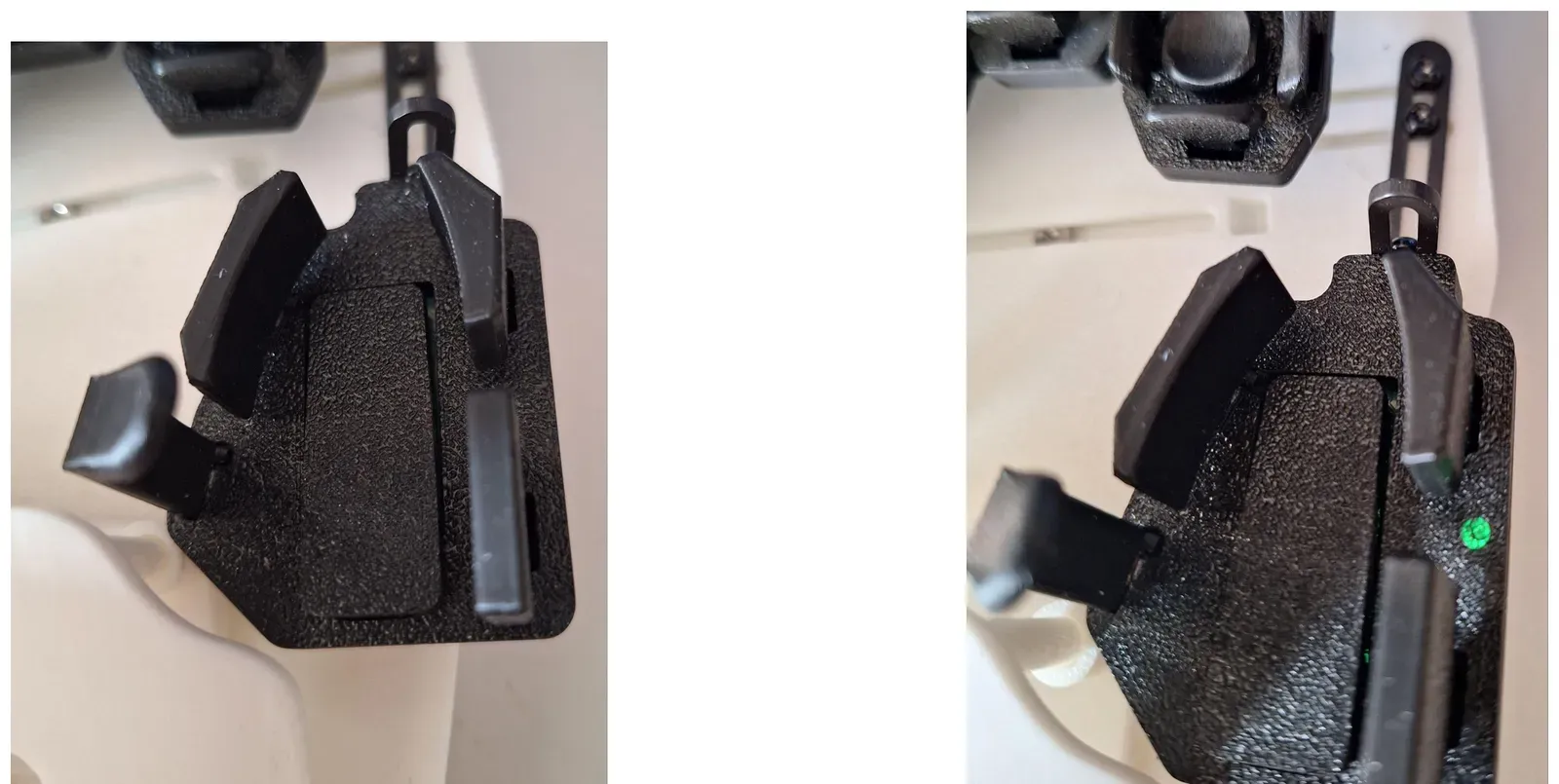
Step 19: Enjoy!
- Your Svalboard starts with the default QWERTY layout.
- To change keys, layers, macros, combos or tap dances, use Keybard: https://keybard.svalboard.com
- For other letter layouts and number layers, open Keybard’s Layouts panel and drag a layer onto yours. It has Dvorak, Colemak, the Hands Down variants (HD Promethium, HD Neu), Graphite, and NavNAS number layers.
- Read the Svalboard Manual to get the most from your Svalboard.
- Questions? Ask on the Svalboard Discord, or email support@svalboard.com.
Thumb cluster layer lights
Section titled “Thumb cluster layer lights”Thumb clusters in kits shipped after May 2024 have an RGB layer light. It shows the active layer. The default colors are:
- Green: layer 0 (base)
- Orange: layer 1 (NavNAS)
- Azure: layer 2 (Function)
- Magenta: layer 15 (mouse layer)
You can change each layer’s color in Keybard. On Svalboard’s Vial firmware, colors are set in the firmware source.
If you print the thumb cluster in a dark color, turn the brightness up, or print the diffuser in white. The diffuser is a separate part in the STEP file.
Brightness
Section titled “Brightness”- Set the brightness in Keybard: click the color dot beside the layer name, then the gear button (Custom layer color). Select LED color and drag Brightness. Choose Apply. It applies to every layer.
- Or add Bright + and Bright - to keys (Keybard’s Special Keys panel, Backlight and RGB Keys), then press them on the board.
- RGB Toggle turns the layer lights on and off.